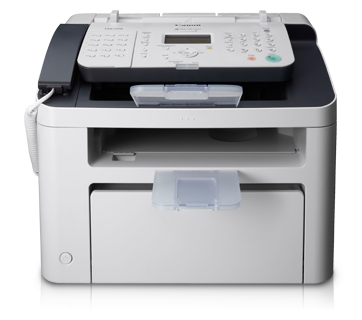
無法啟用讀/寫模式
如何透過 Memory Card Utility 進入讀/寫模式 (Mac OS)
如何變更為讀/寫模式
1. 確認未插入記憶卡。如果已插入記憶卡,將其從記憶卡插槽中取出。
在「套用 (Apply)」功能表中,按一下「BJ Utility」。
在「套用 (Apply)」功能表中,按一下「BJ Utility」。
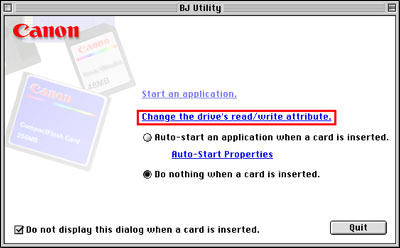
2. 當出現「BJ Utility」對話方塊時,按一下「變更磁碟機的讀/寫性能 (Change the drive's read/write attribute)」。
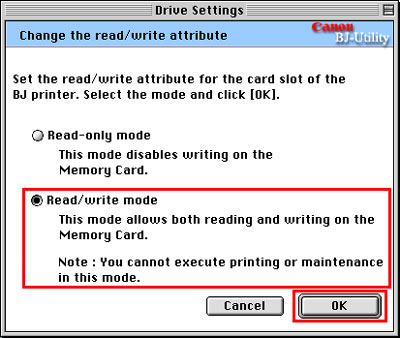
3. 在「磁碟機設定 (Drive Settings)」對話方塊中,選擇「讀/寫模式 (Read/write mode)」,然後按一下「好 (OK)」。
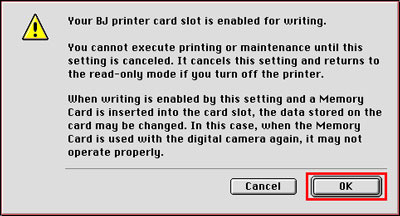
4. 當出現「BJ 印表機記憶卡插槽已啟用寫入。(Your BJ printer card slot is enabled for writing.)」對話方塊時,按一下「好 (OK)」。
5. 當出現「記憶卡插槽的性能已變更。(The attribute of the card slot has been changed.)」對話方塊時,按一下「好 (OK)」。
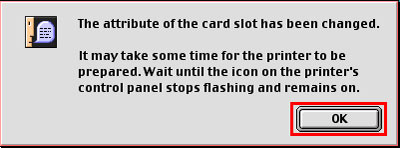
6. 讀/寫模式已選擇。
如何變更為唯讀模式
1. 當出現「BJ Utility」對話方塊時,按一下「變更磁碟機的讀/寫性能 (Change the drive's read/write attribute)」。
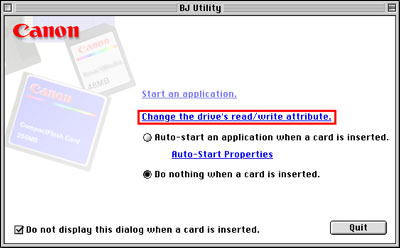
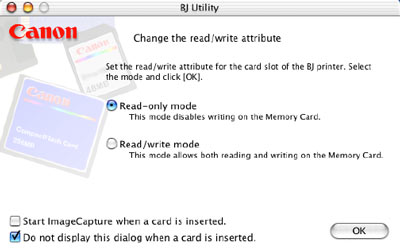
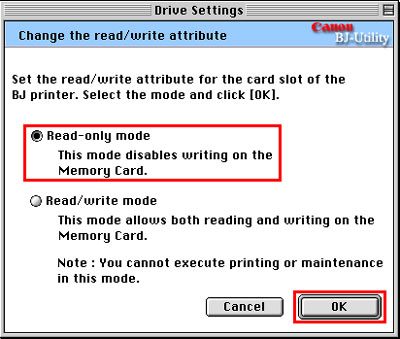
2. 在「磁碟機設定 (Drive Settings)」對話方塊中,選擇「唯讀模式 (Read-only mode)」,然後按一下「好 (OK)」。
3. 出現「記憶卡插槽的性能已變更。(The attribute of the card slot has been changed.)」對話方塊。按一下「好 (OK)」。
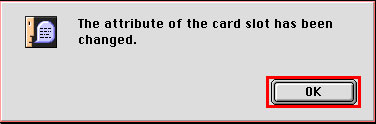
4. 唯讀模式已選擇。
備註:上述所有螢幕以 Mac OS 8.6 - 9.x 為例。在 Mac OS X 下,螢幕設計可能不同。
Mac OS X 下的「變更讀/寫性能 (Change the read/write attribute)」對話方塊範例