
Using an Android Smartphone to Control the Camera and Shoot Remotely (PowerShot G5 X Mark II)
Solution
There are different ways of controlling the camera remotely from a smartphone.
- Controlling the Camera via Bluetooth
You can control the camera by using a smartphone paired via Bluetooth as a remote control.
- Controlling the Camera via Wi-Fi
As you view a live image on a smartphone connected via Wi-Fi, you can shoot remotely.
IMPORTANT
- Before connecting to the camera, you must install the free dedicated Camera Connect app on the smartphone.
- Please refer to "Related information" for details on the smartphones which can be connected with a camera wirelessly.
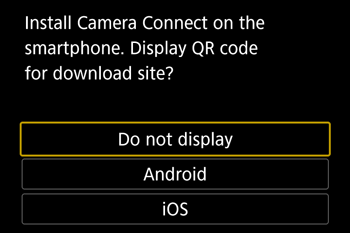
- Camera Connect can be installed from Google Play. You can also access Google Play from a QR code that you can display on the camera when registering the smartphone on the camera.
- Use the latest version of the smartphone OS.
- Activate Bluetooth and Wi-Fi on the smartphone. Note that pairing with the camera is not possible from the smartphone’s Bluetooth settings screen.
* Bluetooth low energy technology (hereafter referred to as "Bluetooth")
NOTE
- In the following explanation, smartphone setting procedures are indicated by the
 , and camera setting procedures are indicated by the
  icon.
icon. - For convenience, smartphones, tablets, and other compatible devices are collectively referred to as "smartphones".
1. Confirm the smartphone's settings.- Make sure that [Airplane mode] is not set.
- Turn [Wi-Fi] to [ON].
- Set the [Bluetooth] switch to [ON].
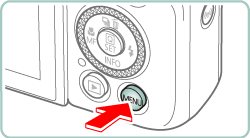
2. Download Camera Connect from the Google Play and install it on the smartphone. 3. Turn the camera on. 4. Press the  button.
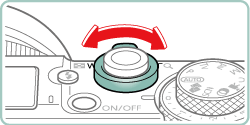
 5. Use the zoom lever to choose the [
  ] tab.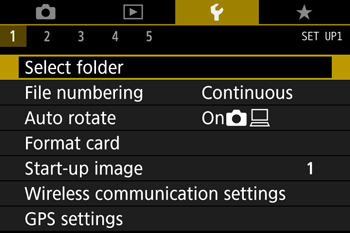
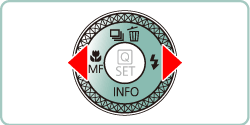
 6. Press the
  /
/  buttons to choose [ 1 ].
  7. Press the
  /
/  buttons to choose [Wireless communication settings], then press the
  button.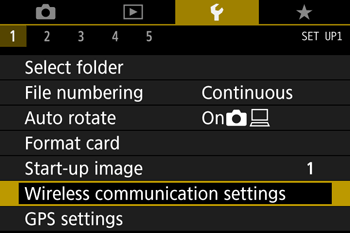
 8. Press the / buttons to choose [Bluetooth function], then press the button.
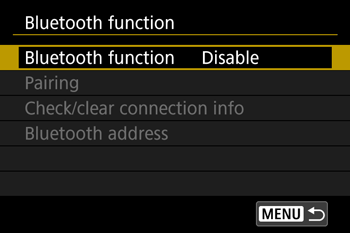
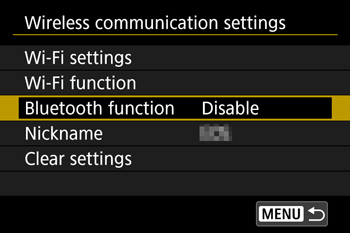 9. Press the / buttons to choose [Bluetooth function] again, then press the button.
 10. Press the / buttons to choose [Smartphone], then press the button.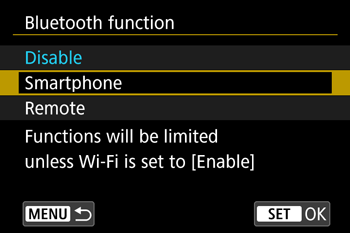
NOTE
When the [Nickname] screen appears, press the button.
button.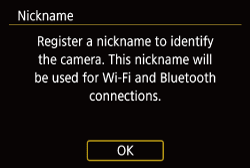
- To use the nickname displayed, press the button.
- Nicknames are 1 – 8 characters and can be changed later. For more information on using the keyboard, please refer to "On-Screen Keyboard".
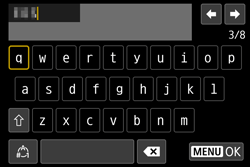
- Press the / buttons to choose [ OK ], and then press the button.
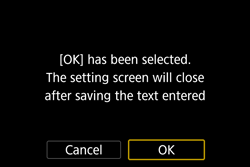
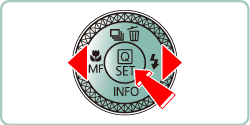
NOTE
- If the following screen appears, press the / buttons to switch to other screens.
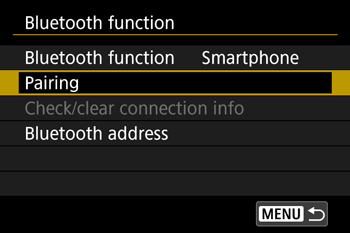
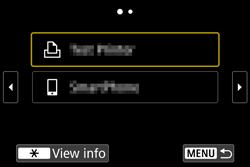 11. Press the / buttons to choose [Pairing], then press the button.
 12. Press the / buttons to choose [Do not display], then press the button.
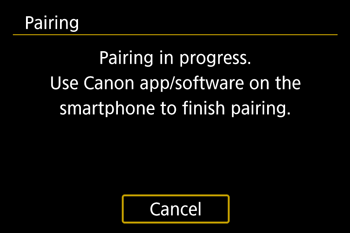
 13. A message is displayed indicating that pairing is in progress.
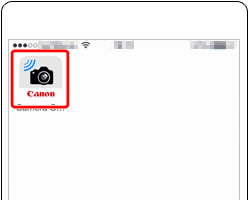
 14. Touch the [ Camera Connect ](
  ) application icon on the smartphone to start Camera Connect.
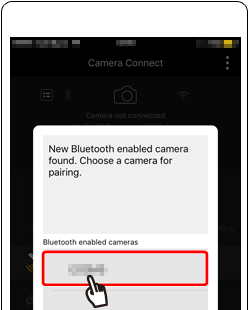
 15. After the camera is recognized, a camera selection screen is displayed.
- Touch the camera to connect.
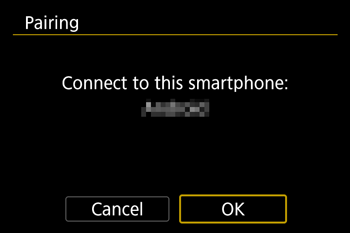
 16. Press the / buttons to choose [OK], press the button.
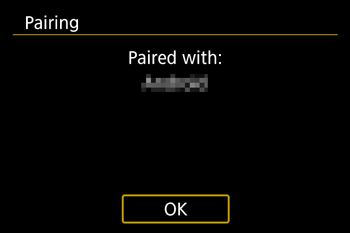
 17. Press the button of this screen.
- The Pairing between the camera and the smartphone should be complete, and connected.
IMPORTANT
- Any active Bluetooth connections will be lost if you remove the camera battery pack. The connection will be reestablished when you insert the battery pack and turn on the camera.
- Battery life may be shorter when you use the camera after pairing with a smartphone, because power is consumed even when the camera is off.
- Before bringing the camera to places where the use of electronic devices is restricted, disable active Bluetooth communication (which is used even when the camera is off) by choosing [ Wireless communication settings ] -> [ Bluetooth function ](twice) -> [ Disable ].
18. Choose [Bluetooth remote controller] in Camera Connect.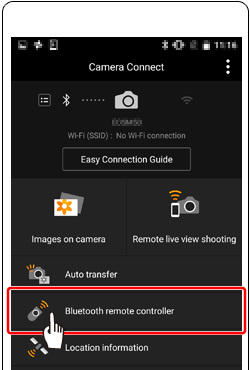
NOTE
- Auto power off is disabled while you are using the Bluetooth remote controller feature.
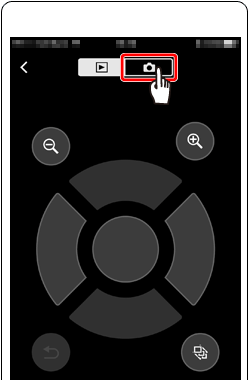
19. The smartphone screen changes to a screen for remote control via Bluetooth.- Choose
 .
.
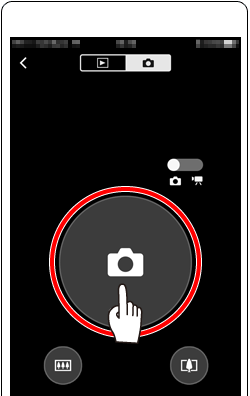
 20. Touch the to take a photo.
 1. Confirm the smartphone's settings.
- Make sure that [Airplane mode] is not set.
- Turn [Wi-Fi] to [ON].
2. Download Camera Connect from the Google Play and install it on the smartphone. 3. Press the  button.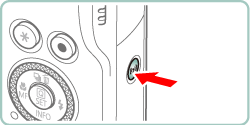
NOTE
When the [Nickname] screen appears, press the button.
button.
- To use the nickname displayed, press the button.
- Nicknames are 1 – 8 characters and can be changed later. For more information on using the keyboard, please refer to "On-Screen Keyboard".
- Press the / buttons to choose [ OK ], and then press the button.
NOTE
- If the following screen appears, press the / buttons to switch to other screens.
4. Press the / buttons to choose [  ], then press the button.
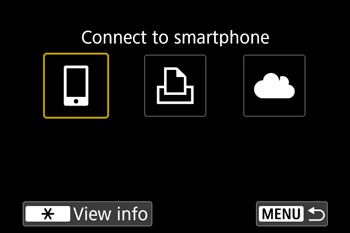 5. Press the / buttons to choose [Register a device for connection], press the button.
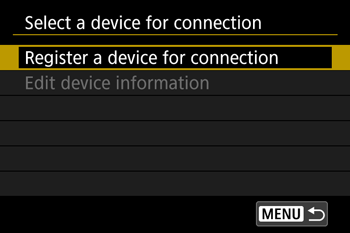 6. / buttons to choose [Do not display], press the button. 7. The SSID (
  ) and password (
  ) will be displayed on the screen.
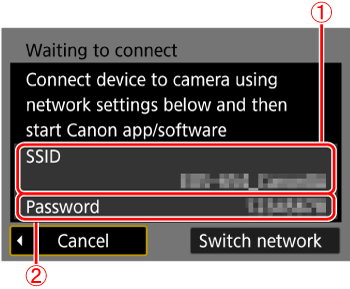 8. Turn Wi-Fi settings to ON in your smartphone, choose the SSID ( ) from step 7.
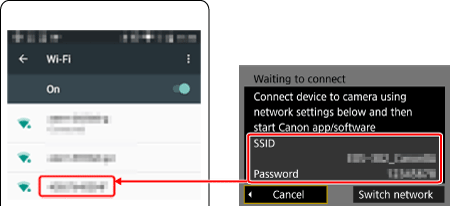 9. Input password from step 7 ( ). 10. Once the connection between the camera and the smartphone has been confirmed, press the home button to return to the home screen. 11. Touch the [Camera Connect] ( ) application icon on the smartphone to start Camera Connect. 12. After the camera is recognized, a camera selection screen is displayed.
- Touch the camera to connect.
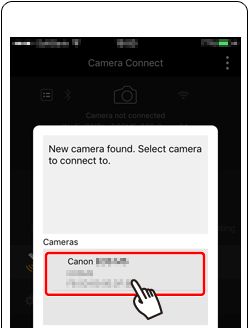 13. Press the / buttons to choose [OK], press the button.
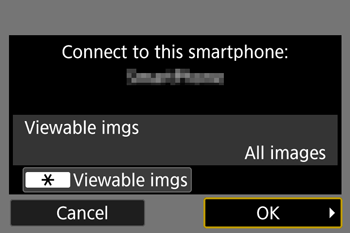 14. The camera screen will show [Wi-Fi on]. 15. Choose [Bluetooth remote controller] in Camera Connect.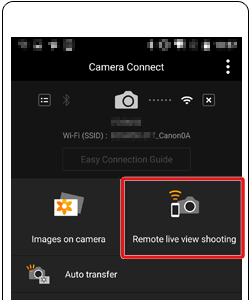
NOTE
If the [Initiating Live view shooting] window appears, touch [OK].
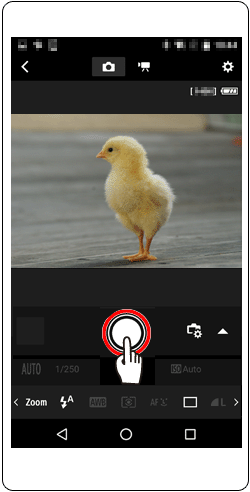
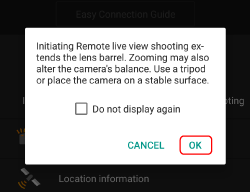 16. The smartphone screen changes to a screen for remote control via Bluetooth.
- Touch the [
 ] to take a photo.
Use the on-screen keyboard to enter information. Note that the length and type of information you can enter varies depending on the function you are using.
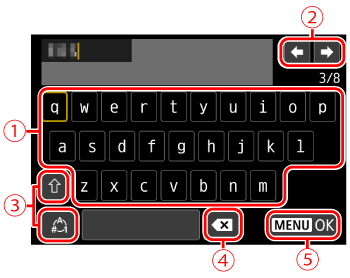
 | •Entering characters Press the / / / buttons to choose the key of your desired character, and then press the button. |
 | •Moving the cursor Choose [  ] or [ ] or [  ] and press the button. ] and press the button.You can also move the cursor by turning the  ring. ring. |
 | •Switching input modes Choose [  ], press the button to switch to capital letters. ], press the button to switch to capital letters.Choose [  ], press the button to switch to numbers or symbols. ], press the button to switch to numbers or symbols. |
 | •Deleting characters Choose [  ] and press the button. The previous character will be deleted. ] and press the button. The previous character will be deleted. |
 | •Confirming input After pressing the  button, press the / buttons to choose [OK], press the button. button, press the / buttons to choose [OK], press the button. |