
2-Sided Copying (MF8580Cdw Only)
Solution
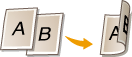
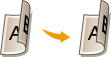
There are three types of 2-sided copying.
 1-Sided->2-Sided
 2-Sided->2-Sided
 2-Sided->1-Sided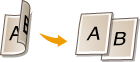
NOTE
- <2-Sided> may not be available with some sizes and types of paper.
- <2-Sided> is not available when using <Paper Save Copy> or <ID Card Copy>.
[  ]
]  <2-Sided> [
  ] Select the type of 2-sided copying [ ]
] <2-Sided> [ ] Select the type of 2-sided copying [ ]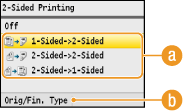
(a) Types of 2-sided copying
Select the type of 2-sided copying you want to use.
(b) <Orig/Fin. Type>
Specify if you want to change the binding, such as when copying book-type documents in calendar-type format.
If you want to copy portrait-oriented documents in calendar-type format (short-edge binding)
<Orig/Fin. Type> <Portrait> [ ] <Calendar Type> [ ]
<Portrait> [ ] <Calendar Type> [ ] If you want to copy landscape-oriented documents in book-type format (short-edge binding)
<Orig/Fin. Type> <Landscape> [ ] <Book Type> [ ]
<Landscape> [ ] <Book Type> [ ] If you want to create copies with a different binding type than the original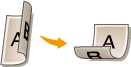

<Orig/Fin. Type> Select the original orientation [ ] Select the original binding type [ ] Select the binding type for the finished copy, which is different from that of the original document [ ]
Select the original orientation [ ] Select the original binding type [ ] Select the binding type for the finished copy, which is different from that of the original document [ ] This setting is required to align the direction of the output paper.
When a 2-sided document is in portrait-oriented calendar-type format (short-edge binding)
<Orig/Fin. Type> <Portrait> [ ] <Calendar Type> [ ]
<Portrait> [ ] <Calendar Type> [ ] When a 2-sided document is in landscape-oriented book-type format (short-edge binding)
<Orig/Fin. Type> <Landscape> [ ] <Book Type> [ ]
<Landscape> [ ] <Book Type> [ ]